IT services
Wifi solutionsOffice cybersecurityWorkplace cyber defenseMicrosoft 365Workplace managementCloud backupServer as a serviceServer hostingVirtual serverNIS2 DirectiveIT infrastructure managementSpecialist as a serviceConsultation and migrationCybersecurity solutionsNetwork solutionsServersData arraysBackupVirtualizationHardware warranty and maintenanceIT service partners
Manage your services and devices
E-shop
Elisa e-shopElisa recommendsiPhone 18 seriesSamsung S26 seriesNew productsSmartphonesLandline phonesMobile phone accessoriesRouters, WiFi devicesTabletsComputersMonitors, docksAccessoriesTelevisions and projectorsSoundbar and home theaterFor gamersAdventure camerasTV mountsAccessoriesSmartwatches and devicesHeadphones and speakersSmart officeBeauty and HealthPrepaid card productsUsed devices
Internet
Smart packagesStandalone 5GOn the computer and tabletAdditional internet dataElisa IoTStatic IPInternet, calls and messages while abroadFixed internet service level (SLA)Mobiilne internet
Manage your services and devices
Calls
Internet, calls and messages while abroadCalling foreign numbers from EstoniaJoin ElisaElisa RingSpeech service numberMobile office phoneIP CentrexCalling foreign numbers from Estonia
Manage your services and devices
Additional services
Mobile-IDMultiSIMConvenience services and call managementElisa Net GuardSmart insuranceGroup SMSOperating leaseElisa Stage production services
Manage your services and devices
Support Center
Self-service
Self-Service HomepageServices and DevicesOrder HistoryService Users and AuthorizationsInvoices and Payment HistoryCurrent Month UsageStatement of services usedBilling and Notification ChannelsAlerts
Restart the device
Turn the device off and immediately back on, then check if the internet started working.
If possible, try if your SIM card can access the internet in another device.
If the internet works in another device, the problem is with your device or its settings. If the internet does not work in the other device either, the issue is likely with the service or the SIM card.
Troubleshooting device-related issues1. Check if mobile data is enabled on your device and if the internet settings are correct.
If you need help with this, do the following:
Go to
Elisa Device Support
page
Select your device there (manufacturer name, operating system)
Find the guide "How to enable mobile internet" under the Internet menu.
2. Check if a data usage limit is set on your device.
If you need help with this, do the following:
Go to
Elisa Device Support
page
Select your device there (manufacturer name, operating system)
Find the guide "Check and optimize data usage" under the Internet menu.
Troubleshooting service-related issues1. Check if mobile internet usage is restricted on your number.
If you need help with this, do the following:
Log in to
Elisa self-service
.
If you have access to multiple customer numbers, select the customer number whose data usage you want to check.
From the main menu, select “Services and devices”.
Select “Number settings”.
Check if mobile internet usage in Estonia is allowed.
2. Check if the data volume included in your package is used up
Log in to
Elisa self-service.
If you have access to multiple customer numbers, select the customer number whose data usage you want to check.
From the main menu, select “Services and devices”.
Check how much data has been used
NB! If your internet volume is full, see the guide "My data volume is full. How can I continue using the internet?"
Check if the service is restricted due to an unpaid invoice.
Log in to
Elisa self-service
, on the homepage you can see your invoice information.
If your ordered service "Internet on computer" is not working, the reason may be the device you are using for internet or the internet service itself.
Check the device-related aspects
Remove the modem (USB stick) from the computer and restart the computer.
Make sure the SIM card is in the modem
If possible, remove the SIM card to see the correct placement from the outline in the slot, and reinsert the SIM card.
Check if the signal bars in the connection window are active.
Open the connection environment. Depending on the device model, entering the connection window is described in the user manual included in the device's sales package. If the signal bars are active in the modem's connection window, the service is available, but it is not passing through the USB modem (USB stick).
If the computer has been restarted and the SIM card placement has been checked, but the signal bars still do not appear in the connection environment, the problem is most likely with the SIM card or the service. If possible, test the service in another device, such as a mobile phone.
Recreate the Elisa internet profile.
Modems purchased from Elisa automatically receive the internet access profile, but in case of an error or for devices purchased elsewhere, the profile can also be created manually.
See the guide "How to create the necessary internet profiles"
on the Elisa Device Support
page.
Remove the connection programs of previous modems from the computer.
If you have previously used another USB modem with the same computer, you need to remove the software related to the previous USB modem from the computer. You can do this as follows:
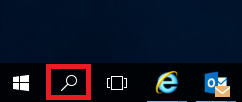
Open the search at the bottom of the computer screen
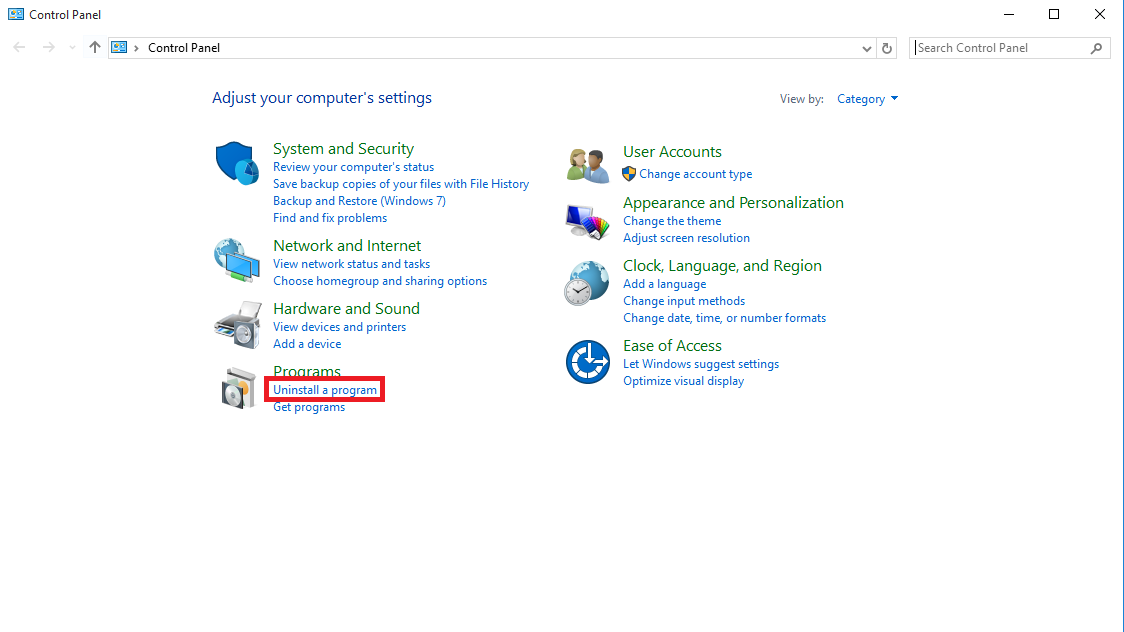
Enter the keyword "Control Panel" in the search bar. (For English menus, "Control Panel"). The control panel window will open, where you should select "Uninstall a program".
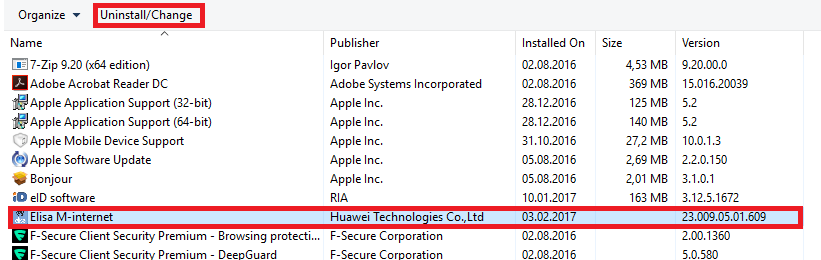
Find your modem software in the list that appears, select it, and apply the uninstall command by clicking "uninstall/change".
In the window that opens, proceed by clicking "Next" and then "Remove". This will remove the modem connection software from your computer.
Make sure your device supports the software version used on the computer.
The computer software supported by the modem is indicated on the website of the manufacturer and the company from which the modem was purchased.
Check the service-related aspectsMake sure there are no restrictions applied to the connection.
The connection may be turned off or restricted due to debt or the data volume of the package being used up.
To check if the data volume is used up:
Log in to
Elisa self-service
If you have access to multiple customer numbers, select the customer number whose data usage you want to check.
From the main menu at the top of the page, select “Usage” and then “M-internet usage”. On this page, you can see whether the data volume included in the package is full or not.
To check for restrictions due to debt:
Log in to
Elisa self-service
You can see immediately on the self-service homepage under "Amount due" whether you have any debt.
If you pay the invoice, the restriction will be automatically removed after the amount has been received by Elisa. Usually, payments reach Elisa's account within 2 hours, but depending on the bank, this time may vary. Check with your bank!
Good to know! If the internet does not start working even after paying the debt, restart your device.
NB! If you have not received a notification about an unpaid invoice on your phone, check which number the debt notification is set to. You can do this in self-service.
Check the service-related aspects
1. Check if the internet speed matches what is promised in your package.
As a first step, measure your mobile internet speed. We recommend using an online speed test tool at www.speedtest.net.
After you have done the speed test, check if the data speeds shown in the test differ significantly from what your package allows. You can see information about your package in Elisa self-service here.
If the speed test results are similar to those described in the package, but you feel that mobile internet is too slow, you should choose a package with higher speeds.
When comparing speed test results, keep in mind that mobile internet speed depends on many factors – device capability, coverage at your location, number of other users, terrain, etc. Therefore, in our package descriptions, we always state "data speed up to". Also, consider your internet activities: is the internet always slow? Or only during specific activities (e.g., watching videos)? If the answer to the latter is yes, you are probably using an internet package with fewer capabilities than your usage habits require.
If the speed test results differ significantly from what your package offers and you have problems using the internet, proceed to the next point.
2. Make sure there are no restrictions applied to the connection.
The connection may be turned off or restricted due to debt or the data volume of the package being used up. A restricted service may give the impression of slow internet – the device tries to access the internet, but fails.
Check if the data volume included in your package is used up. You can do this in Elisa self-service here or by doing the following:
Log in to
Elisa self-service
If you have access to multiple customer numbers, select the customer number whose data usage you want to check.
From the main menu, select “Usage".
Select “M-internet usage”.
Check how much data has been used.
NB! If your package's data volume is full, see the guide "My package's data volume is full. How can I continue using the internet?".
Check if the service is restricted due to an unpaid invoice.
Log in to
Elisa self-service
. On the self-service homepage, you can see your invoice information.
Check the device-related aspectsCheck the internet settings.
By default, internet devices select the network with the strongest signal. This may result in the device using a 2G or 3G network, even though a faster 4G network is available. To avoid this, you should lock your internet device (USB stick, router, tablet) to the fastest available network, preferably 4G. If your current device does not support 4G, lock it to 3G.
If you need help locking the device to a network, see the guide "How to lock your device to 2G/3G/4G network" on the Elisa Device Support page.
Check the condition of your internet device.
If Elisa mobile internet previously worked well on your device but no longer does, one reason may be a change in your device that limits internet usage.
Below you will find a list of device issues that may affect mobile internet usage.
Your laptop or desktop computer is infected with malware, causing slow internet. To solve the problem, try to remove the malware. If you lack the necessary knowledge, contact an IT security specialist. To avoid the same problem in the future, use antivirus software regularly.
You have many programs or apps open on your device at the same time, causing the device to be overloaded and internet usage to fail. After closing unnecessary programs and restarting the device, the problem should be resolved.
You updated the operating system on your laptop or desktop, causing the USB modem to stop working. After reverting the update or acquiring a new USB modem, the problem should be resolved.
Mobile internet is turned off in your tablet settings. If you need help checking this, please see the guide "How to turn off mobile internet on your device" on the Elisa Device Support page.
Wi-Fi is turned off on your laptop, and the computer cannot catch the Elisa mobile internet signal through the router.
Your tablet or USB modem has recently suffered physical damage, causing the internet connection to stop working. The solution is to replace the broken tablet or USB modem.
Try different locations.
If you use the internet indoors, move around the room and try to find a spot with better signal. If the signal strength in your home is stronger in a specific spot, we recommend placing the router there.
Contact our specialist.
If problems with mobile internet usage persist, contact our specialists at Elisa stores or by calling the call center at 6 600 620.
To help our specialist find a solution as quickly as possible, consider the following questions:
Is the internet always slow or only during certain activities (for example, watching videos, while regular browsing works)?
Is the internet always slow or only at certain times (for example, in the evenings)?
Is the internet slow throughout the house or only in a specific location?
How can I continue using the internet?You can conveniently order additional data volume in Elisa self-service here or by doing the following:
Log in to
Elisa self-service
If you have access to multiple customer numbers, select the customer number for which you want to order additional data.
From the main menu, select “Services and devices”.
Select the mobile number for which you want to order additional data.
From the additional services at the bottom of the page, select “Internet additional data”.
Select the appropriate data volume and click “Order”.
You can also order additional data from your device.
You can grant rights to order additional data by phone via Elisa self-service here or by doing the following:
Log in to
Elisa self-service
If you have access to multiple customer numbers, select the customer number for which you want to grant rights to order additional data.
Select “Users and rights”.
Press the red button next to “Internet additional data in Estonia” for the number you want to grant the right to order additional data from the device.
Internet additional data prices
.
Internet additional data terms
.
NB! When you order additional data, you can immediately continue using the internet. If the internet does not start working after ordering additional data, restart your device (restart).
How can I see how much mobile internet I have used this month?
You can view your current month's mobile internet usage in Elisa self-service.
Log in to
Elisa self-service
If you have access to multiple customer numbers, select the customer number whose internet usage you want to check.
From the main menu at the top of the page, select “Self-service”, then “Usage” and then “M-internet usage”.
Select the mobile number whose internet usage you want to check.
What is my mobile internet data volume used for?
Data usage depends on the activities you do online. Generally, activities involving pictures, videos, games, and file transfers use more data than just browsing or reading news.
On a smart device, a lot of data can also be used if you have shared your device's internet connection with other devices or updated the device's operating system.
You can see how much data has been used by different apps and activities on your smartphone from your device.
NB! The device displays the data used since the last data reset (may not be from the beginning of the month, etc.).
Monitoring data usage on Apple iPhone (iOS 9, iOS 10, and iOS 11)
To view data usage:
Select “Settings” and “Mobile Data”.
“Current period” shows the total amount used since the last data reset.
On this page, you can also see the apps and the amount of data they have used.
You can see the last reset date by scrolling to the end of the page to the “Last reset” section.
Monitoring data usage on Android 5.0 and newer operating systems
To view data usage:
Select “Settings” and “Data usage”.
On the page that opens, you can see for which period and how much data you have used, and which apps have used how much data.
When will I be free from the data limit?
If your internet service's data volume for the current month is used up and you do not want to change your package or buy additional data, you can continue using mobile internet when the calendar month changes.
How will I know when the data limit is reached?
We will send you two messages about reaching the data limit.
The first message is sent when 70% of your current month's data volume is used.
The second message is sent when you have used 100% of your monthly data volume.
To which number is the data limit notification sent?
If you use a smart package or mobile internet add-on, we send the data notification to the same mobile number whose internet package data volume is being used up.
If you use mobile internet service on a laptop, desktop, tablet, or router, we send the notification message to the contact number associated with the service.
You can view and change the contact number in Elisa self-service:
Log in to
Elisa self-service
.
If you have access to multiple customer numbers, select the customer number under which you want to view or change the notification number.
From the main menu at the top of the page, select “Self-service”, then “Users and rights”.
Set as the main contact number the number where you want to receive notifications in the future.
You have two options to restrict internet usage:
Turn off the mobile internet option on your device. For help, please see the guide "How to turn off mobile internet on your device" on the Elisa Device Support page.
To restrict mobile internet usage both in Estonia and abroad, activate the mobile internet restriction on your mobile number.
To activate the restriction, do the following:
Log in to
Elisa self-service
.
If you have access to multiple customer numbers, select the customer number for which you want to activate the mobile internet restriction.
From the main menu, select “Services and devices”.
Select the mobile number.
Select “Number settings”.
Turn off "Mobile internet".
Back
Contacts and StoresElisa FIXDevice GuidesPrivate Customer Help CenterBusiness Customer Help CenterAbout ElisaCareersService Terms and Price ListsSustainabilityFor Builders and DevelopersFor CarriersPress InformationData ProtectionLanguage VersionsCookie SettingsAccessibility
All rights reserved 2026
Elisa Eesti AS